
Modeling complex architectural elements like a spiral staircase in Rhino can seem daunting, but with the right techniques, it's quite achievable. In this tutorial, we'll walk through modeling a spiral staircase in Rhino step-by-step.
Overview
There are many ways to model a spiral staircase in Rhino - you can use Grasshopper, plugins, or do it manually. In this tutorial, we'll focus on modeling the staircase directly in Rhino using just the basic tools.Here's a quick overview of the steps we'll cover:
- Set up guides and reference geometry
- Create the spiral railing using Helix and Sweep
- Add steps using Extrude
- Offset and trim curves to create the side profile
- Use Sweep, Planar Surface, and Join to create the 3D staircase
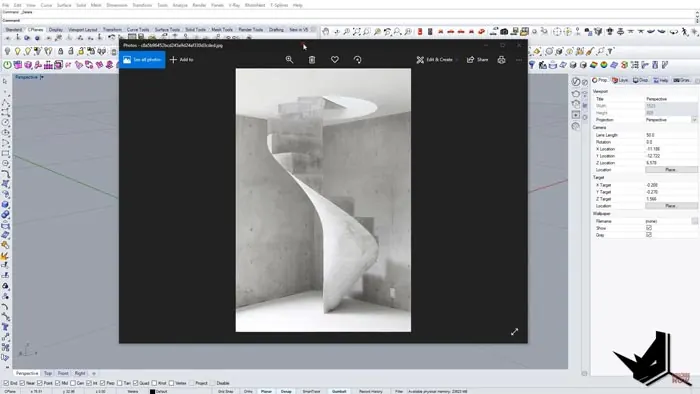
Set-Up Guides and References
First, we'll set up some guides and reference geometry. This will give us a framework to build on.
Draw a vertical line 2m long and divide it into 13 segments - this will be the center axis. Then, use the Helix tool to create a spiral around the line. Set it to 1 turn and 0.6m radius. Divide the vertical line into 13 segments to match the spiral
Create the Spiral Railing
With the guides in place, we can now create the spiral railing. First, turn off all snaps except Point to avoid missing connections. Connect the 13 points on the vertical line to the spiral using Line. Use Sweep 2 to create the railing surface. Next, select the vertical line and spiral as rails and connect lines as the cross-section.
This creates a continuous spiral railing surface.
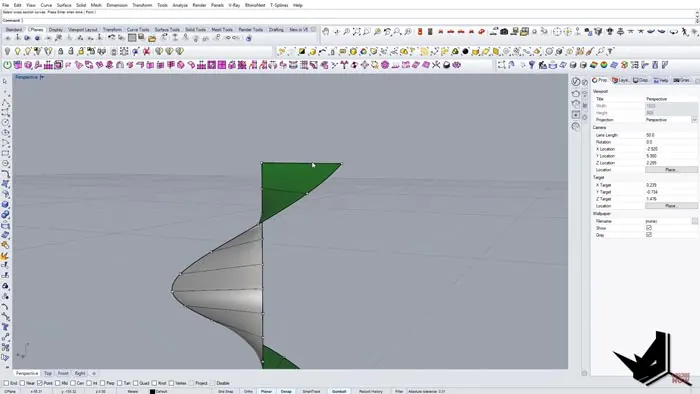
Add Steps
To create steps, we can extrude the vertical lines. Select all the vertical lines except the top and bottom, and then use Extrude to push them up 0.17m to create the steps
Construct Side Profile
Now we need to build the side profile and connect it to the steps. In order to do this, offset the bottom curve up and trim to create the side profile line. Split the top, bottom, and side curves at all 13 points. Use SetPoint to align the splits on the side profile to the steps. Finally, delete excess points.
Bring it Together with Sweep and Join
To complete the staircase we will use Sweep 2 between steps and side curve. Fill the side gaps with PlanarSurface. Select all and Join into one polysurface - this combines all the pieces into a solid staircase model.
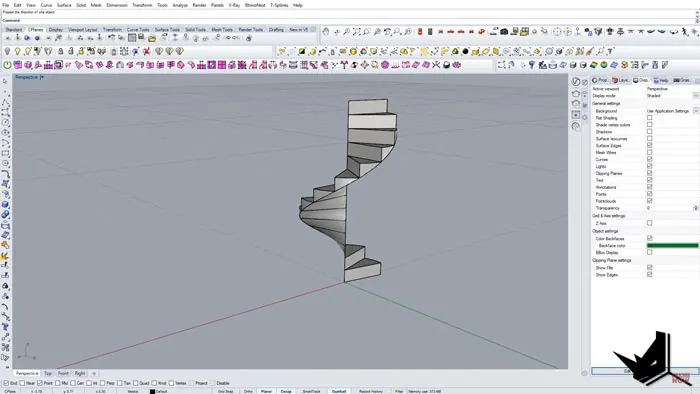
Final Render
Here is a rendered final result:
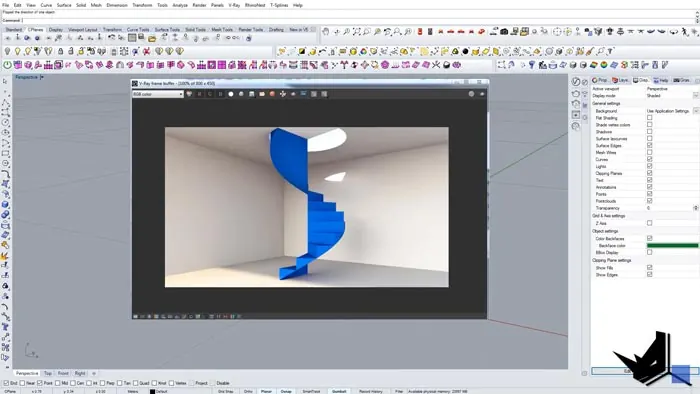
And that covers the overall workflow for modeling a spiral staircase in Rhino! The key tools we used were Helix, Sweep, Extrude, SetPoint, PlanarSurface, and Join.
While it may seem complex at first, by breaking it down step-by-step it's very doable. The same principles can be applied to modeling other complex architectural elements in Rhino.

Rhino for Architects Course
Give your architectural skillset a major boost with the Rhino for Architects Course. Get over 60 hours of focused training tailored specifically for architects. Master commands and techniques to model, render, and animate architectural visualizations at the highest level. Click below for more information and watch your designs come alive!


![Rhino Grasshopper - Create Stairs from CAD drawing [ONE CLICK]](/images/blog/featured/variants/stairs-from-cad--related-card.webp?cb=seo-meta-20260227-164423)