
Creating realistic materials and applying textures effectively in Rhino can take your Enscape visualizations to the next level. With some key best practices, you can achieve photorealistic renders and immersive walkthroughs with ease. In this post, we'll cover the Rhino Enscape workflow for creating stunning textures and materials.
Set Up a Layer Structure
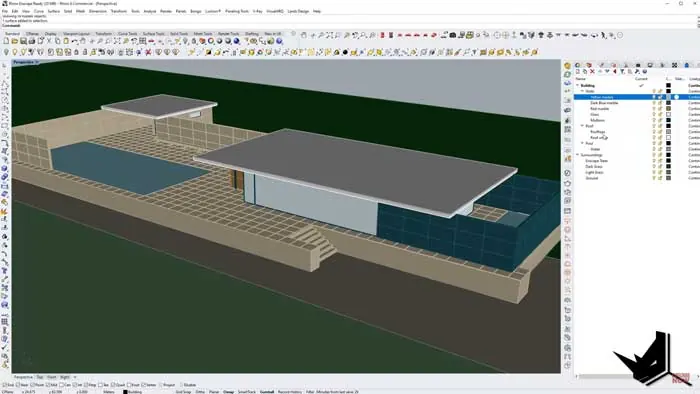
The first step is organizing your Rhino model into a logical layer structure. Divide your model into categories like walls, roof, exterior, interior, etc. Give each layer a self-explanatory name.
This allows you to assign materials to full layers at once later on. It also helps manage visibility and control the scene.
Use Rhino's layer tools to create parent and child layers. For example, you may have a parent layer called "Building" with children layers "Walls", "Roof", "Windows" etc underneath it.
Create Enscape Materials
Next, set up materials in Rhino specifically for use in Enscape. Go to the Materials panel and choose "Enscape Material" instead of the default Rhino one.
Name each material after its layer, like "Blue Marble", "Dark Grass", "Clear Glass", etc. This helps link the materials to the appropriate geometry layers.
Create all the necessary Enscape materials upfront before assigning any textures. Having materials prepared makes the workflow faster compared to making them one by one.
Assign Materials to Layers
With the materials made, go through and assign each one to its matching layer. For example, select all objects on the "Blue Marble" layer, then assign the "Blue Marble" Enscape material to them.
Using Rhino's "Select Objects" by layer and "Assign to Objects" options streamlines this process. You can batch-assign materials instead of manually selecting each piece of geometry.
Follow this for every layer, and your model will have properly defined materials ready for texturing.
Add Material Textures
Now comes the fun part - dialing in the actual texture maps. In Enscape's Material Editor, click the "+" icon to import texture images.
Seamless textures from sites like Textures.com work great. For physically accurate results, use the Albedo map for diffuse, the bump map for normal, and the roughness map for glossiness.
Enscape automatically converts albedo maps into others, but importing custom normal/roughness maps gives more realism. Fiddle with the textures' scaling, contrast, and other properties to get the look you want.
Adjust Texture Mapping
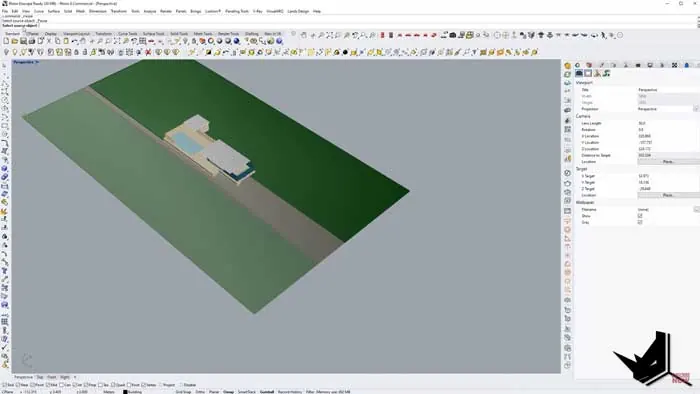
With the base textures applied, spend some time adjusting the texture mapping. This controls how the image wraps onto the 3D geometry.
Using the Texture Mapping option, you can transform the texture's positioning, scaling, and tiling on each surface. The default mapping often looks stretched or skewed.
Try using Box Mapping to precisely fit textures into a 1 x 1 cube. This lets you normalize the scaling across objects.
For quick batch mapping, use "Match Mapping" to easily propagate mapping from one surface to other objects. Fine-tune unique mappings where needed.
Add Entourage and Landscaping
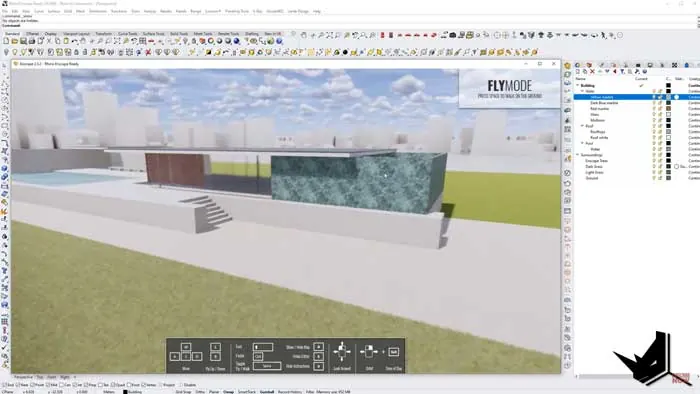
To complete the scene, leverage Enscape's model library of entourage like people, furnishings, vehicles, vegetation, and more.
Populate indoor areas with furniture. Drop some trees and bushes around the site. Add a couple of walking figures to bring the outdoors to life.
Customize the look further by changing the sky, clouds, exposure, and other environment settings. Adjusting these really elevates the rendering to the next level.
Rhino Enscape Workflow Summary
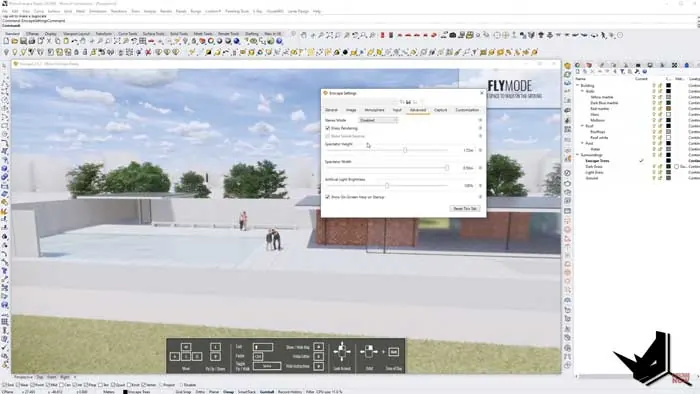
The beauty of Enscape is seeing your materials, textures, and entourage come together in real time. As you tweak settings, the rendering updates instantaneously.
Walk through your model to experience the space firsthand. Or fly around the exterior to showcase the building in context.
Dialing in textures and materials may take some trial and error, but Enscape's speed lets you experiment and get the look you want.
Follow these tips to take your Rhino Enscape workflow to the next level. Proper textures and materials can make models look like real-life architectural visualizations. With the real-time feedback, you'll get there in no time!

Rhino for Architects Course
Give your architectural skillset a major boost with the Rhino for Architects Course. Get over 60 hours of focused training tailored specifically for architects. Master commands and techniques to model, render, and animate architectural visualizations at the highest level. Click below for more information and watch your designs come alive!

![Rhino Lumion Workflow [Simplified]](/images/blog/featured/variants/rhino-lumion-workflow--related-card.webp?cb=seo-meta-20260227-164423)