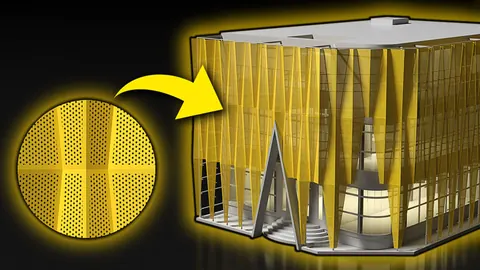
Have you ever wanted to create an eye-catching, dynamic facade using video as an input in Grasshopper? With some clever coding, you can animate movable facade panels that respond to individual video frames. In this post, we'll walk through the steps to pull this off.
Overview
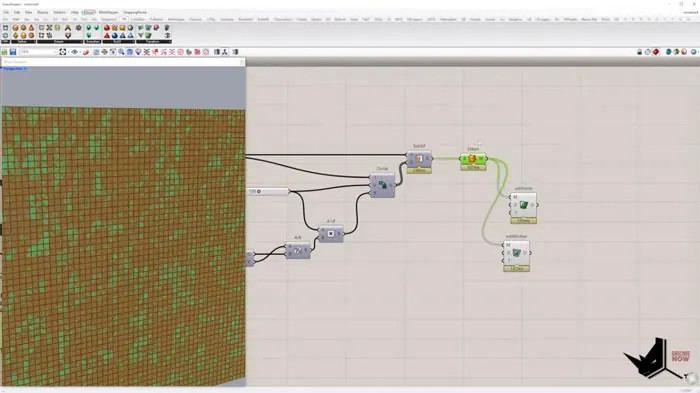
We'll start with a flat surface as our facade. Using the Divide Surface component, we can subdivide it into panels. After extracting the video frames and importing them into Grasshopper, we'll find the average color of each panel. Then based on the brightness of those colors, we'll rotate the panels to create the dynamic effect.
Breaking Down the Process
Creating the Base Facade
First, we need a surface that will become our facade. We can use the Perimeter Surface component to quickly make a flat rectangular surface.
Next, we'll subdivide this surface using the Divide Surface component. Set the number of U divisions to get the number of horizontal panels you want. The output will be a mesh we can work with.
Convert this to a solid by applying a thickness with the Weaverbird Thicken component. Explode and rebuild the mesh to get clean geometry.
Importing the Video Frames
Since we can't directly import video into Grasshopper, we'll need to extract the individual frames first. In Photoshop, go to File > Export > Render Video as Image Sequence. Save the frames as image files in a folder.
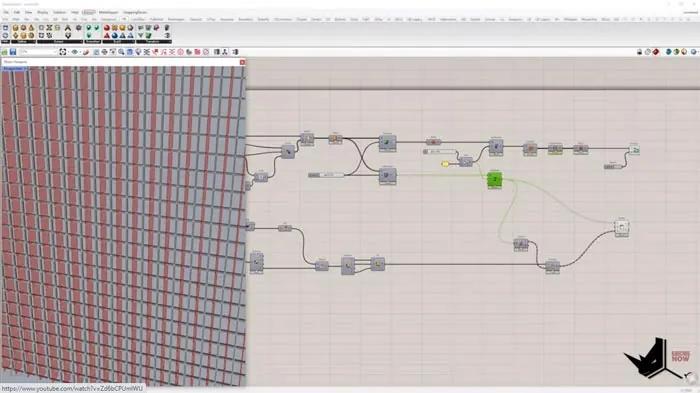
Back in Grasshopper, we can use the Human File Path component to grab all the images from that folder. Plug a List Item component into the output to select each frame one by one.
Import each image using the Import Image component. We'll get a mesh rectangle representing each video frame.
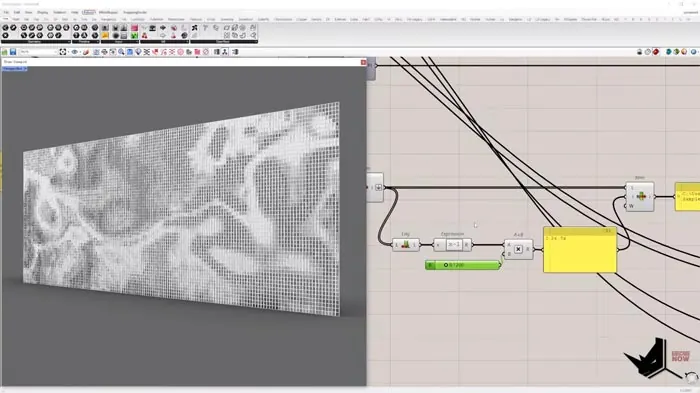
Analyzing and Animating Panels with Video Animation with Grasshopper
With the video frames in Grasshopper, we can now analyze them to animate our facade.
Explode the facade mesh to access each face separately. For each face, find the average color of its four vertices using the Mesh Color component.
Extract the brightness level of each color with the Deconstruct Color node. Remap the values to be within the range we want for rotation.
Use these brightness values to rotate each panel of the facade dynamically based on the video frame's color using Video Animation with Grasshopper. Plug everything into a slider to animate over time.
Bringing It All Together
With these steps, you can take any video and convert it into a cool animated facade in Grasshopper. The techniques covered here provide a solid foundation you can build on and customize for your projects.
Automating facade design with visual data as input opens up creative possibilities and efficiency. This is just one example of the power of computational design.

Rhino for Architects Course
Give your architectural skillset a major boost with the Rhino for Architects Course. Get over 60 hours of focused training tailored specifically for architects. Master commands and techniques to model, render, and animate architectural visualizations at the highest level. Click below for more information and watch your designs come alive!