One of the frustrating things architects and designers might face in a dynamic architectural design software is the hurdles of interoprating between multiple software platforms. Thankfully, the Beam Plugin for Rhino has emerged as a solution to this challenge.
In this tutorial, we're going to talk about the innovative BEAM Plugin, an amazing software which enhances the compatibility between Rhino and Revit.
The BEAM Plugin: A Brief Introduction
The BEAM Plugin is a project developed by MKS Dtech, designed to enhance the interoperability between Rhino and Revit. The plugin allows us to easily import any type of geometry from Rhino to Revit (and vice-versa), including adaptive components as well.
The most significat feature of BEAM is the ability to import block created in Rhino as a family into Revit.
It's important to note that the BEAM plugin comes in both the free and the paid version. Although the paid version offers unlimited access, the free version is very useful as well. A lot of famous companies are already incorporating the plugin in their workflow to simplify the design process.
How to Use BEAM Plugin in Rhino
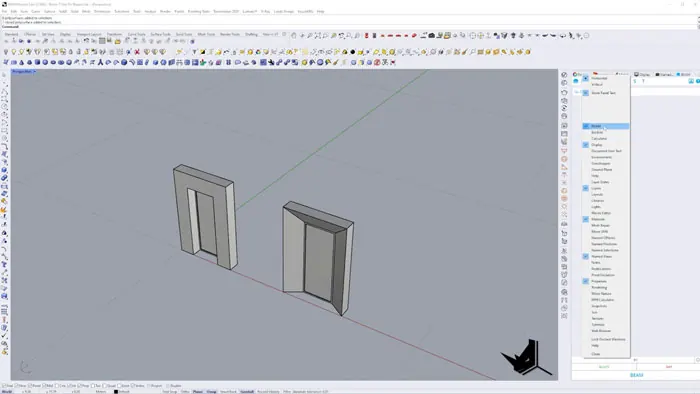
Once you install the BEAM plugin, you need to open the BEAM Panel in Rhino. You can right click on any of the tabs and simplu select the BEAM option.
Now we can dive into how we can use blocks in Rhino. For instance, if we have a regular polysurface for the window and window framing, and we want to create a block from it, we can start by first selecting the whole structure and typing "Block". The base point is going to be the point of our geometry, which we will name "Module One". We can repeate this exact process to create multiple types of shapes and modules for our facade design.
Importing Blocks to Revit
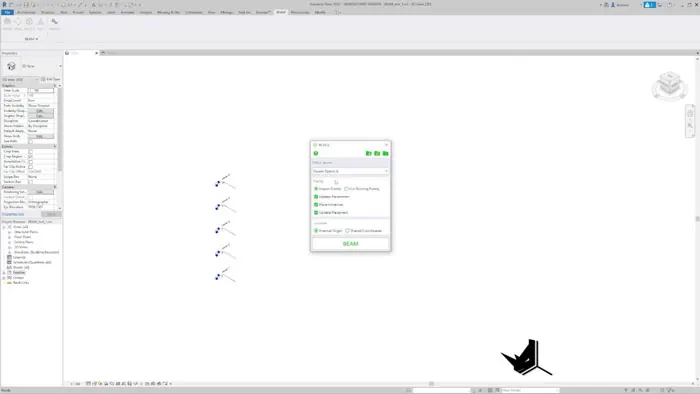
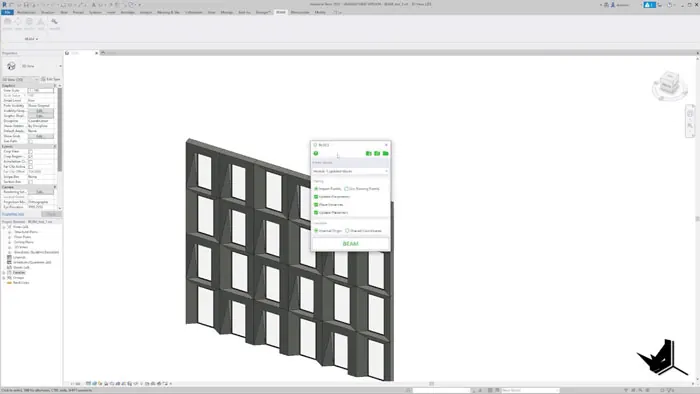
Now that we have the blocks, we want to import them from Rhino into Revit, and this is where we can introduce BEAM. Firstly, make sure you have the BEAM Plugin installed in Revit. Click on the green "Blocks" button. After you export the block from Rhino, the BEAM Plugin will recognize your latest option in Revit. All you need to do after this, is click on "Import Family", leave all of the settings as default and them click on "BEAM".
When the blocks are imported, you will see them appear as families in Revit. Not only can we check the parameters of each block, but also assign the materials to these blocks in Rhino. The BEAM Plugin is going to remember these when importing the block into Revit.
Modifying Blocks
Another positive feature of BEAM Plugin is its flexibility in modifying existing blocks. For example, maybe we want to modify a particular element of a block we have in Rhino, like adding a handrail to a window module.
We can easily add the object to our Rhino block, export it and import in again into Revit using BEAM, and the modification will already be applied.
Conclusion
The BEAM Plugin is a super useful tool for architects, as it sginificantly improved efficiency. Additionally, it allows us to test different design options in Rhino and check them in Revit, making it a powerful tool which will definitely enhance your workflow.
If you'd like a more in-depth tutorial on combining Grasshopper with BEAM and Revit, you can check out the extended version of this tutorial on our Patreon page, where you will also find the project files!

Rhino for Architects Course
Give your architectural skillset a major boost with the Rhino for Architects Course. Get over 60 hours of focused training tailored specifically for architects. Master commands and techniques to model, render, and animate architectural visualizations at the highest level. Click below for more information and watch your designs come alive!