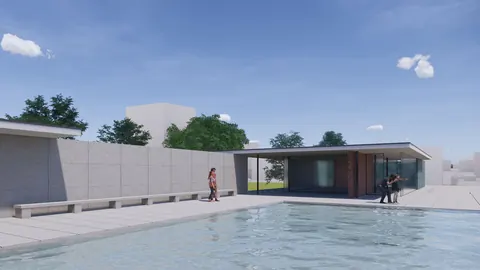
Architectural visualization can be a time-consuming process. However, with the right tools, you can significantly speed up your workflow. In this post, we'll look at how the Rhino Twinmotion workflow can help you create stunning architectural visualizations efficiently.
An Overview of the Rhino Twinmotion Workflow
Rhino is a powerful NURBS modeling tool used by architects for creating complex 3D models. On the other hand, Twinmotion is a real-time visualization and immersive 3D architectural visualization tool by Epic Games.
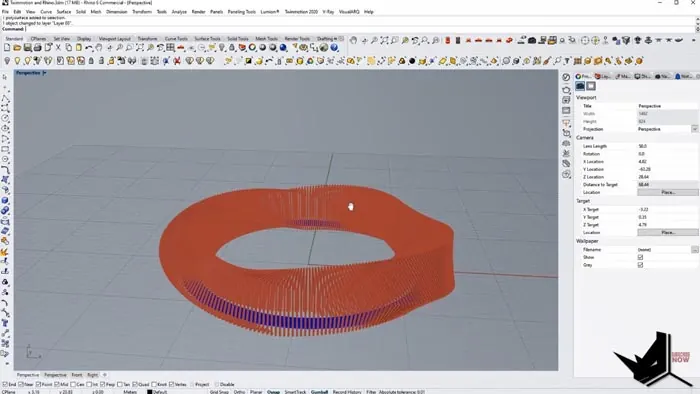
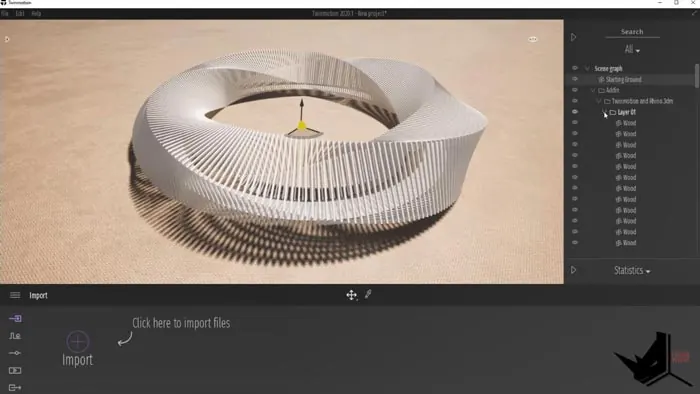
Twinmotion and Rhino integration allows you to quickly transfer Rhino models to Twinmotion for creating high-quality visualizations and animations.
Key Benefits
Here are some of the major benefits of using the Rhino Twinmotion workflow for architectural visualization:
Quick Workflow
The integration between Rhino and Twinmotion is seamless. With just a click of a button, you can send Rhino models directly to Twinmotion. This saves a lot of time compared to using other visualization tools.
Real-Time Rendering
Twinmotion uses Unreal Engine's real-time rendering capabilities. This allows you to instantly see any changes made to lighting, materials, environment, etc. No need to wait for renders.
Easy Environment Creation
Twinmotion comes with a massive library of assets like vegetation, people, vehicles, etc. You can quickly populate your Rhino model's environment by just painting or dragging and dropping these assets.
Animation Capabilities
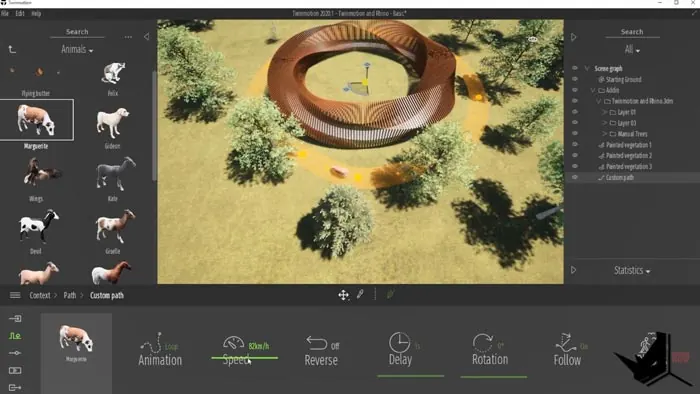
Creating animations and walkthroughs is easy in Twinmotion. You can set up complex path animations and fly-throughs directly within Twinmotion.
Photorealistic Output
The final renderings and animations from Twinmotion are highly photorealistic due to the powerful real-time engine. You can get presentation-ready visuals without needing to use other rendering tools.
Step-by-Step Rhino Twinmotion Workflow
Here is an overview of the typical Rhino Twinmotion workflow:
- Model the architecture and forms in Rhino. Make sure to properly name layers and groups.
- Download and install the Twinmotion plugin in Rhino.
- With the model open in Rhino, click on "Synchronize" in the Twinmotion plugin. This will transfer the Rhino model into Twinmotion.
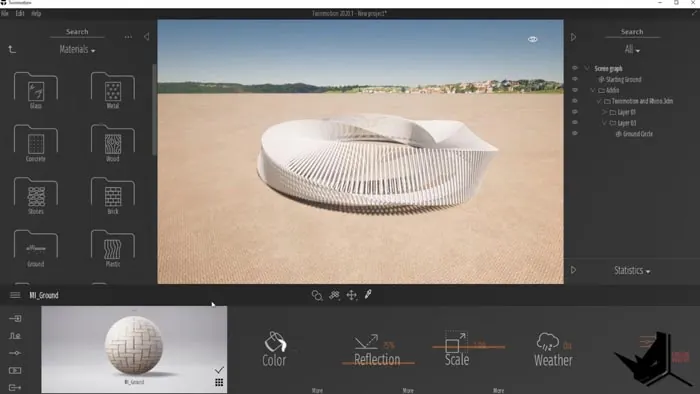
- In Twinmotion, add materials to objects by dragging and dropping them from the material library.
- Populate the environment with assets like trees, grass, people, etc.
- Refine lighting, exposure, shadows, etc. to get the desired mood and look.
- Animate cameras and create fly-through paths if required.
- Export final renders and animation from Twinmotion.
And that's it! As you can see, this workflow provides an efficient way to create stunning architectural visualizations in very little time.
Real-World Example of the Rhino Twinmotion Workflow
Let's go through a real-world example tutorial:
Overview
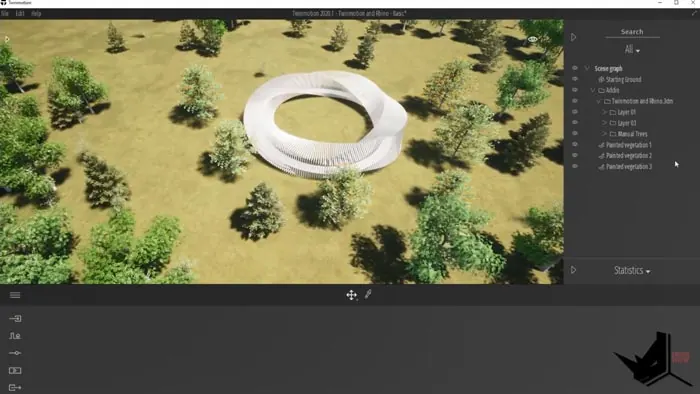
In this example, we'll start with an architectural pavilion model created in Rhino. We'll bring this model into Twinmotion and create a lush green environment around it. We'll also create a quick animation flying around the pavilion.
Setting Up the Base Model in Rhino
First, we model the architectural forms in Rhino. It's important to properly name layers, groups and materials at this stage for easier organization in Twinmotion.
Synchronizing the Model
After installing the Twinmotion plugin in Rhino, we simply click "Synchronize" to send the Rhino model directly into Twinmotion. The layers and groups are automatically matched.
Adding Environment Assets
Within Twinmotion, we add trees, grass and other vegetation assets. We paint the grass using the vegetation tool and use drag-and-drop for the trees.
Creating the Animation
We set up a simple path animation circling around the pavilion. The real-time rendering makes it easy to preview the animation.
Finalizing and Exporting
Finally, we fine-tune the lighting, materials and renders settings. We export the final animation from Twinmotion - no time-consuming renders needed!
And that's it! As you can see, the Rhino Twinmotion workflow enables fast creation of stunning architectural visualizations and animations.
Start Leveraging the Rhino Twinmotion Workflow Today
The seamless integration between Rhino and Twinmotion opens up many possibilities for architects and designers to create professional visual content quickly and efficiently.
So start leveraging the power of Rhino's modeling capabilities combined with Twinmotion's real-time rendering today to streamline your visualization workflow using this workflow.

Rhino for Architects Course
Give your architectural skillset a major boost with the Rhino for Architects Course. Get over 60 hours of focused training tailored specifically for architects. Master commands and techniques to model, render, and animate architectural visualizations at the highest level. Click below for more information and watch your designs come alive!

![Rhino Lumion Workflow [Simplified]](/images/blog/featured/variants/rhino-lumion-workflow--related-card.webp?cb=seo-meta-20260227-164423)