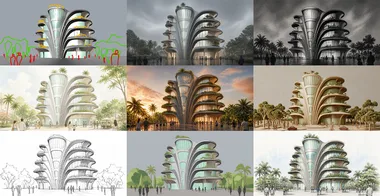
RhinoFrame | AI Rendering Inside Rhino: Live Premiere + Exclusive Beta Access
Join Dusan Cvetkovic for the live premiere of RhinoFrame, our own AI rendering plugin for Rhino 8 on Windows. It captures your viewport and turns it into a high-quality AI rendering directly inside Rhino, using the latest AI image models, with no exporting, no external tools, and no complicated setup. As a Premium member, you get first access to the private beta before any public release, plus free render credits to test the tool on your own projects.

For the past several months, we've been quietly building something new behind the scenes: RhinoFrame, our own AI rendering plugin for Rhino 8 on Windows. It captures your viewport and turns it into high-quality AI rendering directly inside Rhino, using the latest AI image models, with no exporting, no external tools, and no complicated setup. You frame your shot, write a prompt, and get a presentation-ready image in under a minute.
This session is a live premiere, and even though it sits in the mini-course section, it's much more than a tutorial. As a Premium member, you're getting something nobody else has: first access to the private beta, before any public release. Every attendee will receive free render credits to test the tool on their own projects, and your feedback will directly shape what RhinoFrame becomes. You won't just watch the product launch, you'll help build it.
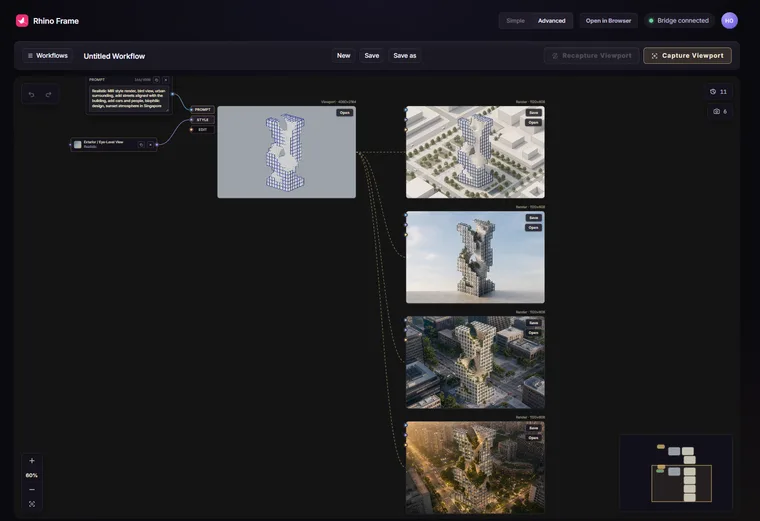
During the live session, we'll walk through the full workflow together: installing the plugin, capturing your viewport with the safe-frame controls, choosing a model and aspect ratio, writing prompts that keep your design intent intact, and saving and managing your results. We'll also preview Advanced Mode, a node-based canvas where you can combine viewports, sketches, reference images, and layer masks into custom rendering workflows. Finally, we'll cover how the beta works: how to submit feedback, what's on the roadmap, and what you can expect as the product evolves toward launch.
- How to install the RhinoFrame plugin and produce your first AI rendering directly inside Rhino 8, with no exporting, no external tools, and no complicated setup
- How to capture your viewport with the safe-frame controls so the render matches the exact composition you framed
- How to choose between the latest AI image models and pick the right aspect ratio for your shot
- How to write prompts that keep your design intent intact and turn a raw viewport into a presentation-ready image in under a minute
- How to use Advanced Mode, a node-based canvas that combines viewports, sketches, reference images, and layer masks into custom rendering workflows
- How to enhance and iterate on a render multiple times to shift the mood, add people or context, and progress toward the final visual
- How to save and manage your results, use your free render credits, and submit beta feedback that shapes the RhinoFrame roadmap
Dusan Cvetkovic
Founder of How to Rhino and the lead behind RhinoFrame. Dusan has spent more than a decade teaching Rhino and Grasshopper to architects and building tools that bring computational design and AI into everyday architectural workflows, reaching a community of 90,000+ YouTube subscribers.