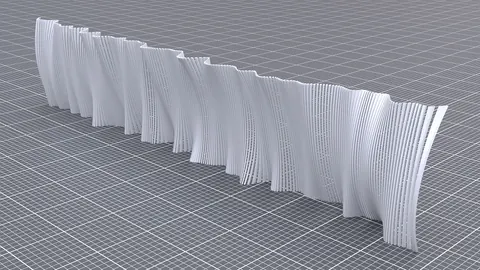
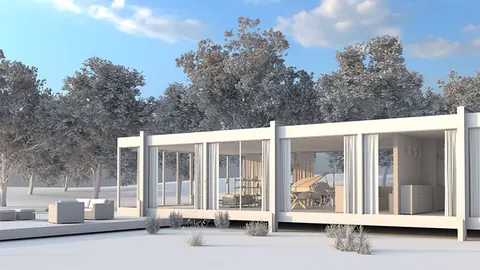
Parametric animation of SubD objects is a powerful technique for creating complex organic motions in Rhino. In this tutorial, we'll explore a workflow for animating a SubD plane using Vray Next for Grasshopper.
Overview of SubD Animation
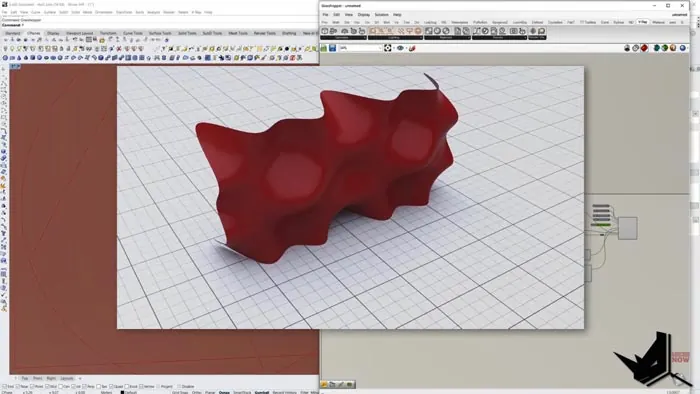
The goal is to take a simple SubD plane and animate the vertices to create an organic, flowing motion. We'll use Grasshopper to control the vertex positions parametrically.
The key steps are:
- Model a simple SubD plane in Rhino
- Import to Grasshopper and deconstruct into vertices
- Animate vertex positions along a timeline
- Reconstruct the mesh and SubD from the animated vertices
- Set up a Vray Real-time renderer to preview the animation
- Render out the animation frames using Vray
Modeling the SubD Plane
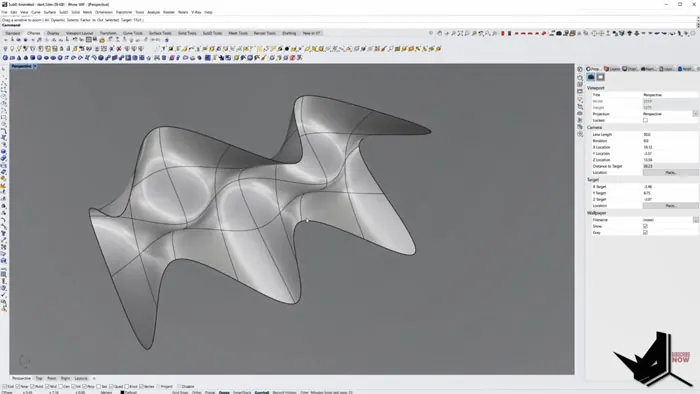
We start in Rhino by modeling a basic SubD plane. After inserting some edge loops, we adjust the vertices to create a wavy profile.
Next, we duplicate the plane and rotate it 90 degrees to create our animation target.
Animating Vertices in Grasshopper
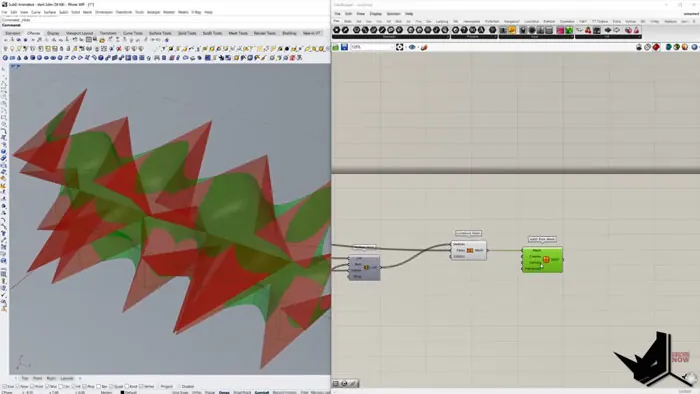
In Grasshopper, we convert the SubD to a mesh and deconstruct it to get a list of vertices.
We identify the key vertices that will control the SubD animation, and store them in a list. The Move component is used to animate their positions over time.
The mesh is then reconstructed using the animated vertices. We can convert this back to a SubD plane for smooth rendering.
Setting Up Vray Rendering
With the parametric animation working, we set up a Vray renderer.
The animated SubD mesh and a background surface are added as Vray geometries. A simple dome light provides illumination.
The Rhino viewport camera is captured to view the animation. A timeline component controls the frame output.
Rendering the Animation
With everything linked up, we can scrub the timeline to preview the SubD animation. The key vertices deform the mesh in an organic waving motion.
Finally, we can render out the animation to image sequences using the Vray frame buffer. The rendered loops show the smooth SubD forms animated parametrically.
Key Takeaways
Some key points about parametric SubD animation in Grasshopper:
- Deconstruct and reconstruct the mesh to animate vertices
- Focus on key vertices to control the animation
- Use a timeline and a renderer to preview and export
- Smooth SubD objects can create complex organic motions
Animating SubDs opens up new possibilities for parametric form-finding and motion design. With the power of Grasshopper and Vray, you can quickly turn static models into dynamic animated objects.
Let me know if you have any other questions!

Rhino for Architects Course
Give your architectural skillset a major boost with the Rhino for Architects Course. Get over 60 hours of focused training tailored specifically for architects. Master commands and techniques to model, render, and animate architectural visualizations at the highest level. Click below for more information and watch your designs come alive!