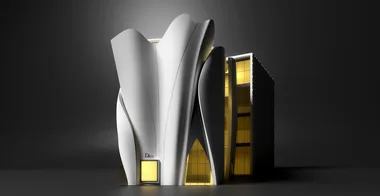
Modeling Dior Store with SubD
Model the exterior of Christian de Portzamparc's Dior Seoul flagship store using Rhino's SubD toolset. The course walks through importing elevation drawings, then sculpting each fluid fiberglass shell with SubD planes, crease edges, insert edge, and boolean operations.

Instructor Dusan Cvetkovic opens by showing the architect's own description of the building: long molded fiberglass shells fitted with aircraft precision, designed to flow like woven fabric. That design intent directly shapes the modeling strategy. Each curved panel starts as a simple SubD plane placed in front of a reference elevation, then gets shaped by inserting edges, pulling control points, adding creases for sharp transitions, and using the Zebra display to check surface quality.
The course also covers practical decisions that come up on any complex facade: how to scale multiple scanned drawings to the same metric system, how to use reference photographs to interpret details that the drawings leave ambiguous, and how to use Sweep 2 for ruled transition surfaces where SubD cannot produce a clean result. Boolean Split and Boolean Difference are used throughout to cut facade openings, frame reveals, and panel seams.
- How to import elevation drawings as reference images, scale them to real-world dimensions, and align plan and section views in 3D space
- How to create SubD planes, orient them to inclined site geometry, and shape them by inserting edge loops with the Insert Edge command
- How to use the Crease command to introduce sharp fold lines into a SubD surface without adding extra geometry
- How to apply the Zebra stripe display mode to evaluate surface continuity in SubD before converting to NURBS
- How to use Scale 1D to stretch individual surface regions in one axis while keeping other dimensions locked
- How to apply Sweep 2 to build transition surfaces between two rail curves when SubD would produce overlapping geometry
- How to Boolean Split a facade surface with extruded cutting curves to separate material zones
- How to use Offset Surface with the both-sides option to give flat surfaces physical thickness