Building Rhino Plugin with AI (vol.2)
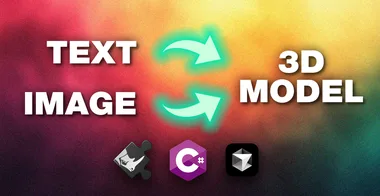
Build a fully functional Rhino plugin that generates 3D models from text and image input, powered by the open-source Hunyuan 3D model from Tencent, running locally on your own machine.

This is the second volume of the Building a Rhino Plugin with AI series. Instructor Dusan Cvetkovic goes further by connecting a local AI 3D generation engine to a custom RhinoCommon panel. The course walks you through every layer of the stack: setting up Visual Studio, installing Cursor as an AI coding assistant, coordinating multiple LLMs to design the architecture, and iteratively building the C# plugin code and the Python API server that drives the Hunyuan 3D model.
The workflow is honest and process-driven. You watch real debugging sessions, real dependency issues with conda environments and PyTorch, and real back-and-forth between the developer and the AI coding agent. By the end the plugin opens as a dockable Rhino panel with Text-to-3D and Image-to-3D tabs, starts the local API server automatically, and imports the resulting GLB model with PBR textures directly into the Rhino viewport.
- How to set up a RhinoCommon plugin project in Visual Studio 2022 with the official Rhino project template
- How to use multiple LLMs (Claude Sonnet, Grok, GPT) in parallel to brainstorm plugin architecture and create a phased task list
- How to set up a conda environment with PyTorch and CUDA to run the Hunyuan 3D model locally
- How to build a REST/JSON API server in Python that wraps the Hunyuan 3D pipeline
- How to write the C# API client class that communicates with the local Python server
- How to create a tabbed Rhino panel with two generation modes, image preview, and resolution sliders
- How to bake the generated GLB model into Rhino with PBR texture maps applied automatically
- How to debug common plugin load errors and .NET build issues by feeding compiler output to Cursor