Key Takeaways
- There is no single "best" Grasshopper plugin. The right plugins depend entirely on what you are trying to achieve, whether that is mesh modeling, environmental analysis, fabrication, or workflow automation.
- LunchBox, Weaverbird, and Pufferfish are the essential starting trio that every Grasshopper user should install first. They cover geometry generation, mesh operations, and parametric transformations.
- Ladybug Tools is the industry standard for environmental analysis, covering sun paths, radiation, energy performance, and daylight simulation all within Grasshopper.
- Workflow plugins like Human and Metahopper save hours on large definitions by improving organization, automation, and canvas management.
- Start with your biggest challenge, then find the plugin that solves it, rather than installing everything at once and getting overwhelmed.
One of the most common questions we get from architects learning Grasshopper is: "What plugins should I install?" The honest answer is that there is no universal "best" Grasshopper plugin. It really depends on what you want to achieve.
Some plugins are incredible for geometry generation. Others focus on environmental analysis, structural simulation, BIM integration, or fabrication workflows. The key is to start with a problem you are trying to solve, then find the plugin that helps you solve it.
That said, after years of teaching Grasshopper to 900 architects and using these tools on real projects, certain plugins have proven themselves essential over and over. This guide organizes the best Grasshopper plugins by function, so you can go straight to the category that matters for your work.
Geometry and Mesh Modeling
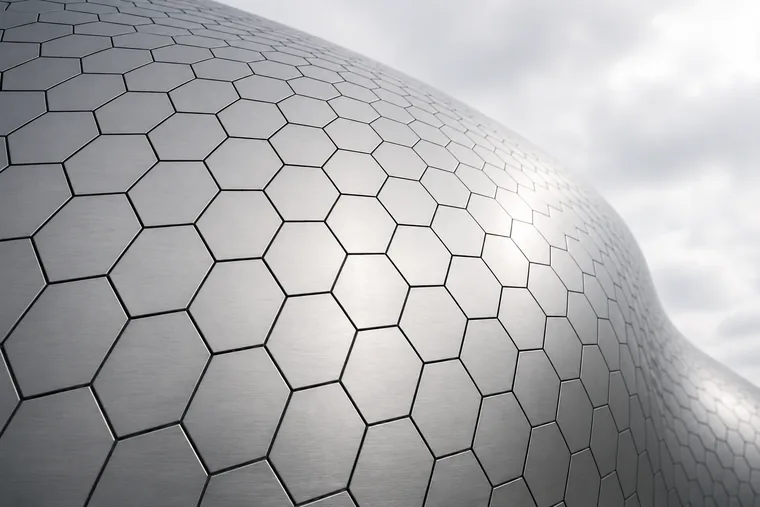
Mathematical surface generated with LunchBox in Grasshopper
These plugins expand what you can do with geometry in Grasshopper, from mathematical surfaces and mesh operations to voxel modeling and advanced NURBS manipulation.
LunchBox (Must-Have)
LunchBox is probably the first plugin every Grasshopper user should install. Created by Nathan Miller, it provides a massive collection of components for paneling systems, mathematical surfaces, data management, and geometry generation. Need to create a space frame, quad paneling, or honeycomb pattern on a surface? LunchBox does it in a few components.
Beyond geometry, LunchBox includes utilities for working with Excel data, creating diagrams, and managing lists. It is one of those plugins that you will keep finding new uses for as your Grasshopper skills grow. We use LunchBox extensively in our Grasshopper Complete Course because it covers so many common architectural tasks out of the box.
Weaverbird (Must-Have)
Weaverbird is the go-to plugin for mesh subdivision and smoothing. If you work with meshes at all, whether for organic forms, topological studies, or converting rough geometry into smooth surfaces, Weaverbird is essential. It provides Catmull-Clark subdivision, Loop subdivision, mesh thickening, and a range of mesh topology operations that vanilla Grasshopper simply does not offer.
For architects working on freeform or organic designs, Weaverbird transforms blocky mesh geometry into smooth, buildable surfaces. It pairs beautifully with Kangaroo for form-finding workflows where you first simulate a structure and then smooth the result.
Pufferfish (Must-Have)
Pufferfish specializes in morphing, tweening, and parametric transformations. It lets you blend between geometries, create smooth transitions, tween curves and surfaces, and apply complex transformations that would take dozens of vanilla components to achieve. If you have ever needed to morph one shape into another or create a gradient transition across a facade, Pufferfish is the answer.
The plugin is particularly powerful for facade design and parametric form studies where you need smooth, controlled variations across a surface or along a path.
NGons
NGons extends Grasshopper's mesh capabilities with support for polygonal meshes beyond triangles and quads. If you are working with hexagonal patterns, Voronoi structures, or any mesh topology that goes beyond standard tri/quad meshes, NGons gives you the tools to create and manipulate them properly.
MeshEdit
MeshEdit adds advanced mesh editing operations that fill gaps in Grasshopper's native mesh tools. Boolean operations on meshes, mesh splitting, edge operations, and mesh repair tools make it invaluable for complex mesh workflows, especially when preparing geometry for 3D printing or fabrication.
Mesh+
Mesh+ provides additional mesh analysis and manipulation tools, including mesh coloring, curvature analysis, and mesh decimation. It is particularly useful for visualization and analysis workflows where you need to color-code mesh faces based on data like structural stress or solar exposure.
Dendro
Dendro brings voxel-based modeling to Grasshopper using OpenVDB. Instead of working with NURBS or mesh surfaces, you work with volumetric data, which opens up entirely different approaches to geometry creation. Boolean operations become trivial, organic blending between objects happens naturally, and complex intersections that would break traditional geometry work flawlessly. It requires a different way of thinking about form, but the results can be remarkable.
Pattern Generation and Paneling
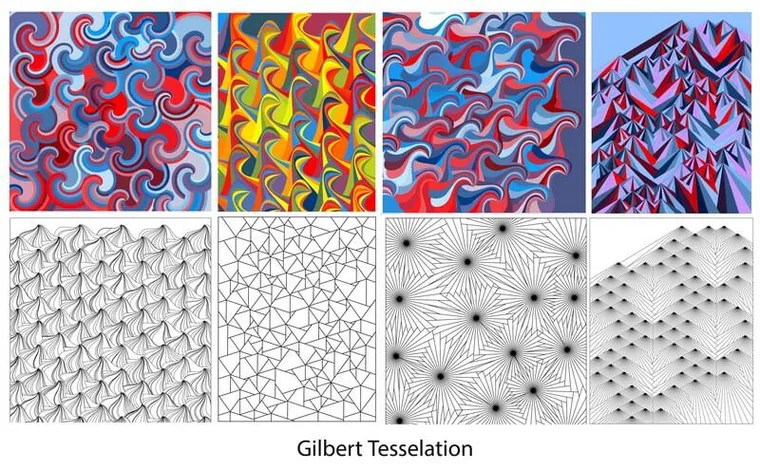
Algorithmic patterns generated with Parakeet in Grasshopper
Pattern and paneling plugins are essential for facade design, surface articulation, and creating repetitive systems with controlled variation.
Parakeet
Parakeet is dedicated to pattern generation, and it delivers an impressive range of options. Fractal patterns, Islamic geometry, recursive subdivisions, tiling systems, and mathematical curves are all available as ready-made components. For architects designing facades, floor patterns, or decorative screens, Parakeet provides starting points that would take hours to build from scratch. We have a dedicated Parakeet tutorial that covers the fundamentals of pattern generation with this plugin.
PanelingTools
PanelingTools provides structured workflows for applying 2D and 3D patterns to surfaces. While LunchBox also handles paneling, PanelingTools offers more control over panel orientation, edge conditions, and custom panel families. It is particularly useful for facade studies where you need to manage attractors, variable panel sizes, and surface UV mapping.
Peacock
Peacock bridges the gap between digital patterns and physical fabrication. It generates patterns that are designed to be buildable, with tools for creating interlocking systems, foldable patterns, and modular assemblies. If your pattern work needs to leave the screen and become a physical installation, Peacock helps you think about joints, tolerances, and assembly logic from the start.
Environmental Analysis
Ladybug Tools (Ladybug, Honeybee, Dragonfly, Butterfly)
Ladybug Tools is the industry standard for environmental analysis in Grasshopper. The suite includes four interconnected plugins: Ladybug for climate analysis, sun paths, and radiation studies; Honeybee for energy modeling and daylight simulation; Dragonfly for urban heat island analysis; and Butterfly for computational fluid dynamics.
If you are designing with any awareness of environmental performance, whether that is optimizing solar gain, analyzing daylight factors, running energy simulations, or studying wind patterns around buildings, Ladybug Tools is not optional. It is the most widely used environmental analysis toolkit in parametric design, and major firms around the world rely on it for performance-driven decisions.
We cover Ladybug extensively in our content. Our Ladybug environmental analysis tutorial walks through the fundamentals, and our Design with Climate workshop goes deeper into sustainable design workflows using the full Ladybug Tools suite.
Structural Analysis and Form-Finding
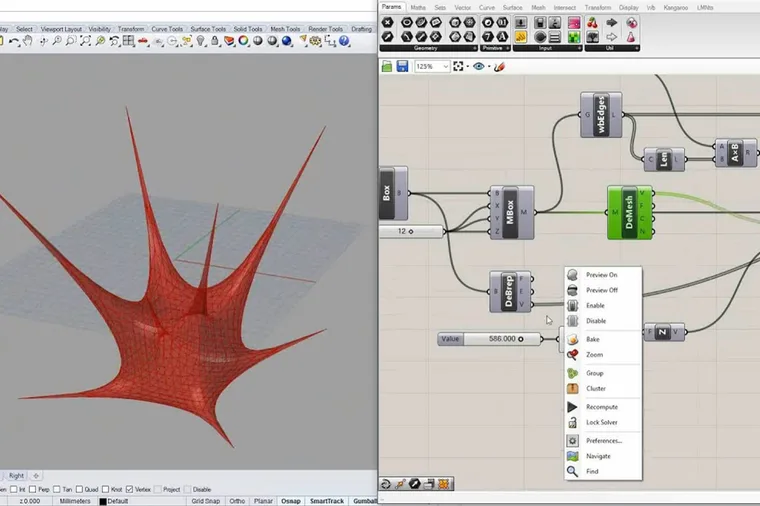
Form-finding with Kangaroo Physics in Grasshopper
These plugins let you simulate physical forces, optimize structures, and find forms that respond to gravity, tension, and compression directly within your parametric model.
Kangaroo
Kangaroo is Grasshopper's physics engine, and it is one of the most powerful plugins in the entire ecosystem. Created by Daniel Piker and now included with Rhino 7+, Kangaroo simulates forces in real time: gravity, tension, compression, pressure, collision, and more. For architects, this means you can find structural forms (catenary curves, minimal surfaces, tensile structures), simulate fabric behavior, perform mesh relaxation, and test structural concepts without leaving Grasshopper.
What makes Kangaroo special is its interactivity. You can drag points and change parameters while the simulation runs, seeing the structural response in real time. For form-finding workflows where structure and geometry are inseparable, Kangaroo is the starting point.
Karamba3D
Karamba3D brings real structural analysis into Grasshopper. While Kangaroo simulates physics intuitively, Karamba3D calculates actual structural performance: forces, stresses, displacements, and buckling. You can define materials, cross-sections, supports, and loads, then watch your structure deform under load and identify weak points.
For architects who want to optimize structures within Grasshopper rather than exporting to separate FEA software, Karamba3D is extremely powerful. Combined with Grasshopper's optimization solvers, you can run hundreds of structural iterations to find the lightest, strongest, or most efficient solution. It is widely used in academic and professional computational design practices.
Milipede
Milipede focuses on topology optimization and finite element analysis. Given a design space and load conditions, it can calculate where material is needed and where it can be removed, producing organic, structurally efficient forms. Think of those bone-like optimized brackets you see in advanced manufacturing. Milipede brings that same logic to architectural scale.
Fabrication and Production
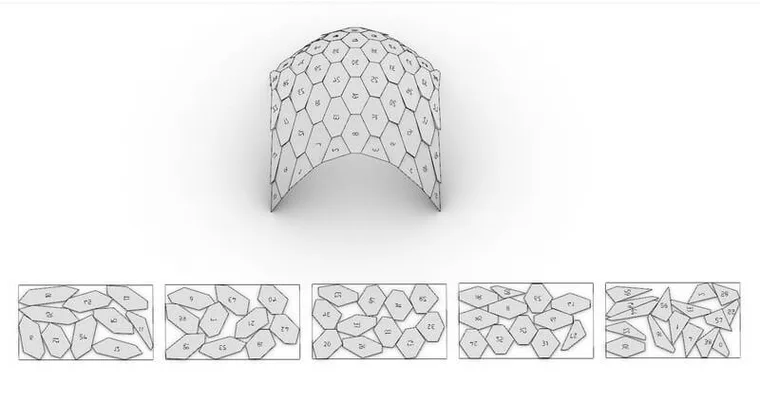
Automated panel nesting with OpenNest for CNC fabrication
When your design needs to become physical, whether through CNC, laser cutting, 3D printing, or manual assembly, these plugins help bridge the gap between digital geometry and real-world production.
OpenNest
OpenNest automates the nesting of 2D parts onto sheets for CNC cutting or laser cutting. If you have a parametric facade with hundreds of unique panels that need to be cut from sheet material, OpenNest arranges them to minimize waste. It handles rotation, spacing, and sheet boundaries automatically. For any fabrication-heavy project, OpenNest pays for itself in material savings alone.
Bowerbird
Bowerbird provides tools for unrolling and developing surfaces, which is critical for fabrication workflows. If you need to flatten a curved surface into a flat cutting pattern (for metal cladding, fabric structures, or paper models), Bowerbird handles the development with control over seam placement and strip width.
Clipper
Clipper performs 2D boolean operations (union, intersection, difference, offset) on polylines and curves. While this sounds simple, it is incredibly useful for fabrication workflows where you need to combine, trim, or offset 2D cutting profiles. It is fast, reliable, and handles complex cases that Grasshopper's native curve booleans struggle with.
Stripper
Stripper helps with strip-based fabrication by dividing surfaces into developable strips. This is particularly useful for projects involving curved cladding or bent sheet material, where you need to decompose a doubly-curved surface into strips that can be manufactured from flat stock.
BIM and Interoperability
For architects working in BIM environments, these plugins connect Grasshopper's parametric power to documentation, metadata, and cross-platform workflows.
Elefront
Elefront is essential for managing geometry attributes and metadata in Grasshopper. It lets you bake geometry to Rhino with specific layers, names, user keys, and attributes attached. For large projects where you need to organize hundreds of elements with proper naming conventions and data, Elefront turns Grasshopper from a geometry tool into a data management system. It is particularly powerful when combined with BIM workflows where every element needs to carry information beyond just shape.
Rhino.Inside.Revit
Rhino.Inside.Revit is a game changer for architects who work in both Rhino and Revit. It runs Rhino and Grasshopper inside Revit, letting you use parametric Grasshopper definitions to create and modify Revit elements directly. Design a complex facade in Grasshopper and push it into Revit as native curtain wall panels. Generate a parametric structure and convert it to Revit structural elements. The bridge between computational design and BIM documentation finally works both ways.
We have a dedicated Rhino Inside Revit course that covers the complete workflow, and the Rhino vs Revit comparison we wrote explains when and why you would want both tools in your pipeline.
Speckle
Speckle is an open-source platform for exchanging data between design tools. It connects Grasshopper to Revit, Blender, Unity, Unreal Engine, and more. Unlike file-based exchange (exporting IFC or DWG), Speckle streams data live between applications. Change something in Grasshopper and see it update in Revit automatically. For teams working across multiple platforms, Speckle eliminates the export/import cycle.
Optimization
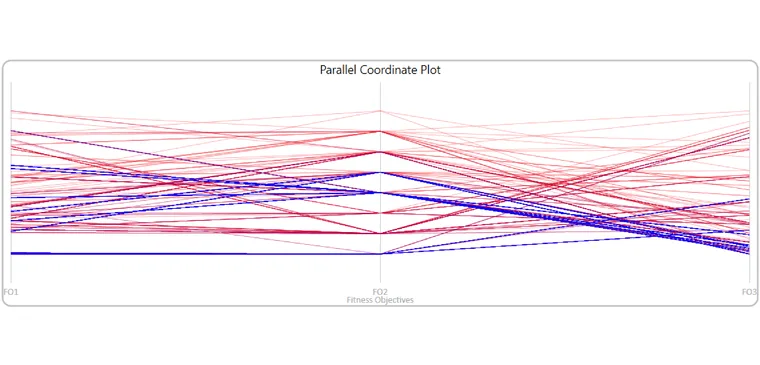
Multi-objective optimization results in Wallacei
When you need to evaluate thousands of design options and find the best solution based on multiple criteria, these plugins go far beyond Grasshopper's built-in Galapagos solver.
Wallacei
Wallacei is the most advanced multi-objective optimization tool for Grasshopper. While Galapagos handles single-objective optimization well enough, real architectural problems usually involve competing objectives: minimize cost while maximizing daylight while minimizing structural weight. Wallacei uses evolutionary algorithms to explore the entire solution space and present you with a range of optimal trade-offs.
What sets Wallacei apart is its analytics. It visualizes the solution space, shows you how objectives relate to each other, and helps you understand which design variables matter most. For data-driven design and performance optimization, Wallacei is the professional-grade tool. Our Optimization in Grasshopper workshop and Optimization course cover these advanced optimization techniques in depth.
Anemone
Anemone brings looping and iteration to Grasshopper, something that is not natively supported but often essential. If you need to run a process repeatedly (grow a fractal, simulate step-by-step, accumulate results over iterations), Anemone provides simple loop components that make it possible. It is lightweight but fills a critical gap in Grasshopper's data flow paradigm.
Workflow and Productivity
These plugins do not create geometry, but they make working with Grasshopper significantly faster and more organized, especially on complex definitions.
Human
Human is a must-install for anyone working with large Grasshopper definitions. It provides tools for creating custom UI elements (value sliders, buttons, toggles), managing Rhino display settings from within Grasshopper, referencing objects more effectively, and controlling geometry preview. When your definitions get complex and you need a cleaner interface for yourself or for handing off to colleagues, Human makes it possible.
Metahopper
Metahopper lets you manipulate the Grasshopper canvas itself. You can query component states, modify groups, create definitions that build other definitions, and automate canvas management tasks. For power users managing large, multi-branch definitions or creating reusable template systems, Metahopper is a productivity multiplier.
Sunglasses
Sunglasses is a lightweight but surprisingly useful plugin that displays component names directly above them on the canvas. When you are navigating a definition with hundreds of components, or trying to understand someone else's work, seeing the names at a glance without hovering over each component saves significant time. It is also invaluable for teaching and presentations where viewers need to follow along.
Snapping Gecko
Snapping Gecko adds snapping and alignment features to the Grasshopper canvas, helping you keep definitions organized and visually clean. It is a small quality-of-life improvement that adds up over time, especially if you care about readable, well-structured definitions.
pOd_GH_Button
pOd_GH_Button adds customizable button components that you can wire into your definitions for triggering actions, toggling states, or creating simple user interfaces. It is useful for definitions that need manual trigger points rather than automatic updates.
Utility Toolkits
These are the Swiss Army knife plugins: collections of components that fill small gaps across many categories. None of them do one dramatic thing, but all of them regularly save you time.
Heteroptera provides a wide range of utility components for data management, geometry testing, and list operations that extend Grasshopper's native capabilities. Wombat adds geometry and math utilities that handle edge cases vanilla Grasshopper misses. Fennec offers lightweight data processing tools that speed up common operations. Flexibility provides additional transformation and geometry manipulation components. Nautilus adds specialized tools for shell and spiral geometry creation.
In the "you do not know you need these until you do" category: Fence adds spatial containment and boundary testing tools. Sasquatch provides advanced data tree manipulation components for restructuring complex data. Treesloth offers additional tree operations for those moments when Grasshopper's native data tree tools are not quite enough, which happens more often than you would expect on complex projects.
Rendering and Visualization
V-Ray for Grasshopper
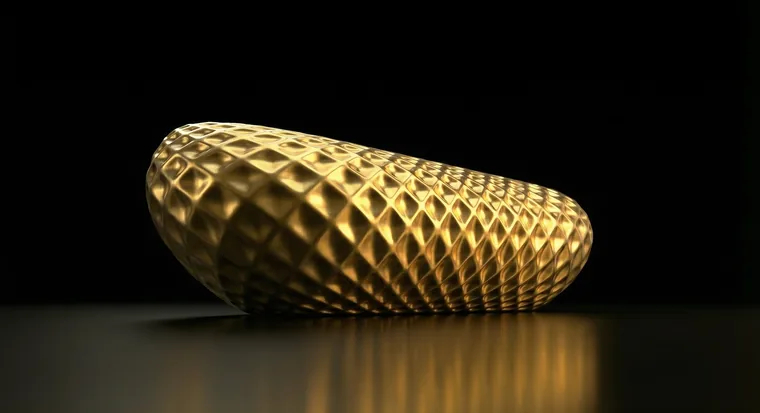
Architectural rendering powered by V-Ray for Grasshopper
V-Ray's Grasshopper integration lets you control rendering parameters parametrically. You can assign materials, set up lighting, and configure render settings all within your Grasshopper definition. This means you can batch-render design variations automatically or create rendering workflows that update as your design changes. For studios that already use V-Ray for production rendering, the Grasshopper plugin adds parametric control to the rendering pipeline.
Chromodoris
Chromodoris creates isosurfaces from point cloud or volumetric data within Grasshopper. It is a specialized tool for generating smooth surfaces from scalar fields, useful for visualization of analysis results (like wrapping structural stress data into a 3D surface) or creating organic geometry from mathematical functions.
How to Choose Your Plugins
With this many options, the worst thing you can do is install everything at once. Plugin conflicts happen, Grasshopper loads slower with more plugins, and you will never learn any of them well if you spread your attention across dozens.
Start with the essentials: LunchBox, Weaverbird, and Pufferfish. These three cover the widest range of common architectural tasks and will serve you well regardless of your specialization.
From there, add plugins based on your actual needs:
- Working on facades? Add Parakeet and PanelingTools.
- Interested in sustainable design? Install Ladybug Tools.
- Doing fabrication work? Get OpenNest and Bowerbird.
- Working with Revit? Rhino.Inside.Revit and Elefront are essential.
- Ready for optimization? Wallacei and Kangaroo open up performance-driven design.
All of these plugins are available for free on Food4Rhino, the official Rhino plugin repository, with the exception of Karamba3D and V-Ray which are commercial products. If you want structured guidance on using these plugins in real architectural workflows, our Grasshopper Complete Course covers many of them, and our Premium workshops go deep on specific tools like Ladybug, optimization, and computational design techniques.
Related Resources
Rhino Inside Revit Course
Streamline your architectural workflows leveraging Rhino and Grasshopper directly in Revit with the Rhino Inside Revit Course. Get specialized training to master RIR components and techniques. Seamlessly develop complex forms in Rhino and integrate them into your Revit projects. Click below for more information and unify your workflow!